Running a proactive HPE warranty check is one of the smartest, simplest things you can do to shield your business from expensive downtime. Think of it as your first line of defence. It’s a quick task that confirms your hardware's support status before a crisis hits, letting you plan for renewals or replacements on your own time—not in the middle of a catastrophic failure.
Why Your HPE Warranty Check Matters More Than You Think
We’ve all been there: that gut-wrenching moment when a critical server goes down. No IT manager ever wants to experience that. But what if you started seeing the HPE warranty check as a core business strategy instead of just another item on your IT to-do list? This simple shift in perspective can prevent that exact scenario from ever happening. It's not just about dodging surprise repair bills; it's about protecting your entire company from operational chaos.
Let me paint a picture. Imagine a BPO in Makati City running a 24/7 customer support hub. It’s 3 AM, and their workhorse HPE ProLiant database server suddenly dies. A frantic check reveals its warranty expired two months ago. The difference is staggering. Instead of a quick call to HPE for a guaranteed 4-hour onsite fix, they're now scrambling to find a third-party tech, hunting for costly out-of-stock parts, and watching revenue bleed away with every minute of downtime.

A Strategic Imperative for Business Continuity
Building regular warranty checks into your IT management workflow is a fundamentally proactive move. Knowing your HPE warranty status is mission-critical, and using a dedicated system for overall warranty tracking helps you keep tabs on every piece of equipment you own. This isn't just about protecting hardware; it’s about making sure your business never stops.
A proactive warranty check transforms IT from a reactive "firefighting" department into a strategic asset that actively protects business operations and profitability. It's about budget foresight, not just break-fix.
This discipline is especially critical here in the Philippines, where the digital economy boomed to contribute 8.4% of the nation's GDP in 2023. In fact, local data reveals that over 70% of businesses in Metro Manila and Cebu—particularly call centres and hybrid teams—check their HPE warranties quarterly. They do this to avoid downtime incidents that can easily cost upwards of PHP 500,000 each time.
For any business that depends on leased hardware or manages a large fleet of devices, this diligence is simply non-negotiable. By making the HPE warranty check a routine part of your operations, you turn a simple lookup into a powerful tool for risk management and financial planning. And if you'd rather not handle it yourself, exploring managed IT support can automate this entire process for you.
Finding Your HPE Serial and Product Numbers
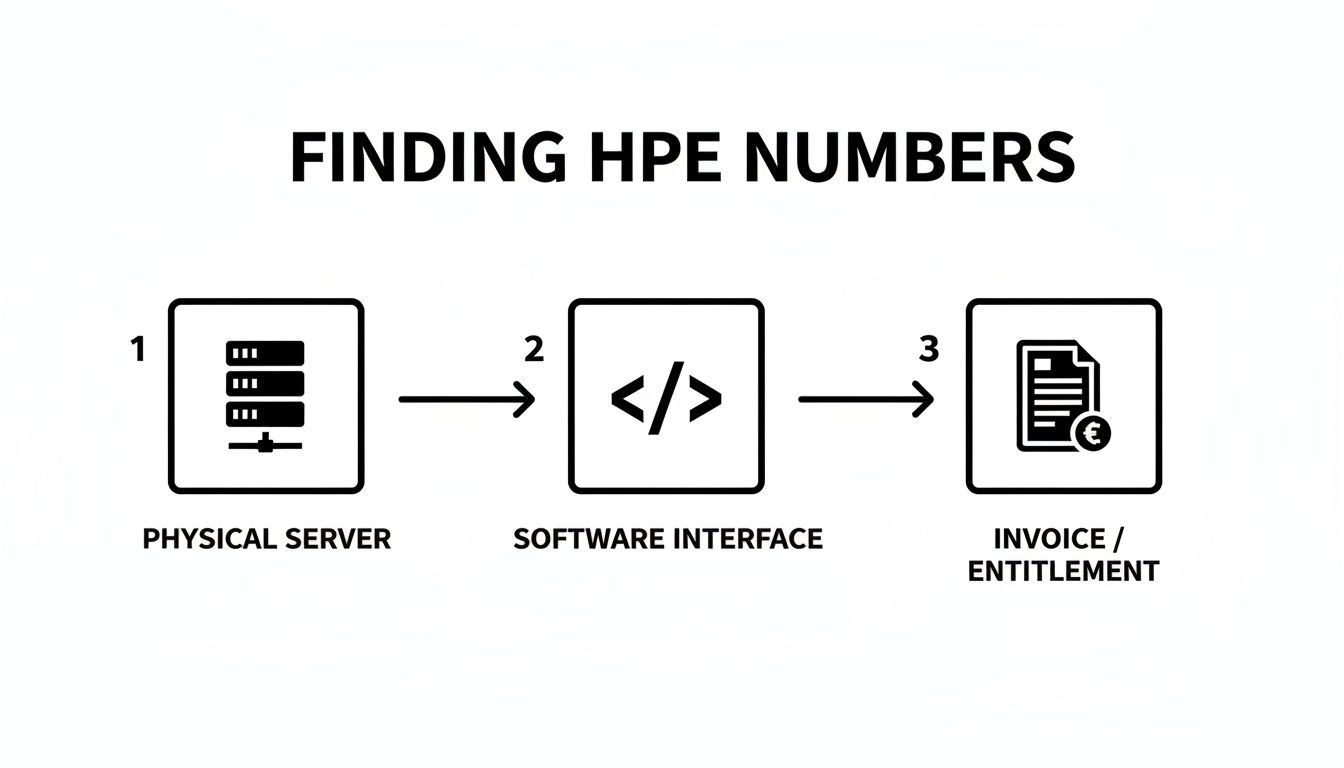
Before you can even think about checking an HPE warranty, you need two key pieces of information: the serial number (S/N) and the product number (P/N). These are the unique identifiers that HPE uses to track every single piece of hardware. Without them, you're essentially flying blind. Think of them as the VIN for your servers and networking gear.
Finding these numbers is usually pretty simple, but where you look depends entirely on the type of equipment you have. For any IT team, knowing the go-to spots is a massive time-saver.
Common Locations for Physical Labels
The quickest way is almost always to find the physical label on the device itself. HPE is generally consistent, but the location can vary between product families.
- HPE ProLiant Servers: For popular rack servers like the DL380, your best friend is the pull-out tab on the front of the chassis. It’s a small plastic tag that slides right out, giving you the S/N and P/N without having to yank the server out of a packed rack. On tower models, you'll typically find the sticker on the back or top panel.
- HPE Aruba Access Points: Just flip it over. The label with the serial number is almost always on the bottom of the AP, right near the mounting bracket.
- HPE Desktops and Workstations: This one's easy. Just check the side or back of the PC tower. The sticker is usually large and contains everything you need for a warranty lookup.
When the Physical Label Is Gone
So, what do you do when the label is scratched beyond recognition, covered up, or just plain missing? It happens all the time, especially with older gear or in a busy data centre. Thankfully, you've got options.
The first place I always check is the original purchase invoice or packing slip. These documents should list the serial numbers for everything in that order. This is exactly why solid information technology asset management is non-negotiable—it ensures you have a paper trail.
For servers, the HPE Integrated Lights-Out (iLO) interface is a lifesaver. If you can log into the server's iLO, the serial and product numbers are displayed right on the system information summary page. This is fantastic for remote management because you don't need to be anywhere near the physical machine.
For IT teams managing dozens or hundreds of devices, pulling serial numbers from software like iLO is infinitely more efficient than sending someone to the data centre to read labels. It saves hours and prevents simple transcription errors.
Lastly, if you can get console access to a desktop or server, the serial number is almost always stored in the BIOS/UEFI. Just reboot the machine, hit the key to enter the setup utility (it's usually F9 or F10 on HPE systems), and you'll find it listed under the system details. It's the perfect digital backup when a physical sticker fails you.
Using the Official HPE Support Center Tool
Alright, so you’ve got your serial and product numbers handy. Now for the moment of truth: the actual HPE warranty check. Your go-to place for this is the official HPE Support Center portal. Think of it as the single source of truth for your hardware's support status. This is where we turn those long strings of letters and numbers into real, practical information you can act on.
Finding the right page is easy. HPE designed the tool to be straightforward, whether you're just checking one new server or verifying an entire rack of equipment you're responsible for. The goal is simple: punch in the serial number and get a clear, detailed report on its warranty entitlement.
As you can see, the interface is clean and no-nonsense. It’s all about getting you the info you need fast, with the serial number field and the "Submit" button front and centre.
How to Run a Single Device Check
Checking a single device is a breeze. Let's imagine you've just unboxed a new HPE ProLiant DL380 Gen10 server. Before you rack it up and push it into your production environment, you need to confirm its warranty. You’d simply take its unique serial number, type or paste it into the field on the HPE Support Center site, and hit submit.
In seconds, the portal will pull up a detailed results page. This is where you need to pay close attention, because understanding this report is what makes this a powerful management tool, not just a simple lookup.
The real value of the HPE warranty check isn't just seeing a date; it's understanding the specific service level you're entitled to. Knowing you have a "4-Hour Onsite Response" versus "Next Business Day Parts Replacement" dramatically changes how you plan for and react to a potential hardware failure.
Performing a Bulk Warranty Check
But what if you're dealing with more than just one machine? A common task for IT teams here in the Philippines is managing a big hardware refresh, like deploying 50 HPE EliteDesk mini PCs for a new BPO floor. Checking each serial number one-by-one would be a nightmare and a total waste of time.
Luckily, the HPE tool handles bulk checks. You can just copy and paste a whole list of serial numbers directly into that same input box. Just make sure they're separated by a comma or each one is on a new line.
- Example List:
CZC12345ABCZC12345ACCZC12345AD
The system will then process all 50 devices at once and give you a consolidated report. This makes it incredibly easy to scan for any devices with expiring warranties or coverage gaps. For anyone managing hardware at scale, this feature is a genuine lifesaver.
Making Sense of the Results Page
The warranty report gives you much more than a simple expiry date. It breaks down your coverage into a few key pieces of information that you absolutely need to understand.
| Term | What It Means | Practical Example |
|---|---|---|
| Status | Shows if the warranty is currently Active or Expired. |
An "Active" status means you can call HPE for support. If it's "Expired," you're looking at out-of-pocket costs for repairs. |
| Service Type | Describes the kind of support included, like Onsite Support or Parts Exchange. |
"Onsite Support" is the gold standard—it means an HPE technician will come to your office to fix the problem. |
| Service Level | Defines the response time, such as Next Business Day or 24x7 4-Hour Response. |
For a mission-critical server in a 24/7 operation, that "4-Hour Response" is non-negotiable for minimising downtime. |
By taking a moment to review these details for every piece of hardware, you can build a complete and accurate picture of your support coverage. More importantly, you'll spot any potential gaps long before they turn into a late-night emergency.
So, the HPE warranty checker tells you your critical server has "Foundation Care." That sounds reassuring, but what does it actually mean when that server goes down on a Saturday morning? Understanding the fine print of these support tiers is crucial for turning that warranty jargon into a real-world plan.
Not all warranties are built the same. The right level of support can be the difference between a small blip and a full-blown operational meltdown. This is where digging into the details of your HPE warranty status pays off. The "Service Level" you see in the report is your contract—it tells you exactly what to expect when you need a helping hand.
Let's break down what the most common HPE support tiers actually give you.
From Foundation to Proactive Care
HPE bundles its support services into what are often called Care Packs. Each one is designed for a different kind of business need and hardware role. Knowing which one covers your gear is the only way to accurately gauge your operational risk.
- Foundation Care: Think of this as your essential safety net. It provides reliable hardware support with very specific response times. For example, a standard office desktop with a Next Business Day (NBD) onsite response is probably fine. An employee can just grab a spare laptop for a day while they wait for a fix.
- Proactive Care: This tier takes things a step further. You get all the hardware support of Foundation Care, but with the added benefit of proactive monitoring and reporting. For example, the system might automatically log a support case if it detects a failing drive in your RAID array, allowing you to replace it during a scheduled maintenance window instead of during a crash.
- Tech Care: As a newer offering, Tech Care is all about getting a more personalised and direct support experience. It’s designed to give you faster access to product specialists, which is a lifesaver when you're wrestling with a complex or unfamiliar technical problem.
The real-world difference here is huge. An admin server that just handles internal file shares might be okay with a next-day fix. But what about the customer-facing database server for your 24/7 e-commerce site? That demands a much, much faster response.
A "Next Business Day" response for a critical production server is a business continuity risk just waiting to happen. For any system that directly impacts revenue or operations, a 4-hour response time should be the absolute minimum standard you accept.
HPE Support Tiers at a Glance
Choosing the right support level really comes down to one thing: how much does this piece of hardware matter to your daily operations? A small delay for a shared office printer is a minor inconvenience. That same delay for your main firewall could be a catastrophe.
To help you visualise this, here’s a quick comparison of the most common support levels we see in the field.
| Support Tier | Key Feature | Typical Response Time | Best For |
|---|---|---|---|
| Foundation Care NBD | Reliable hardware repair | Next Business Day Onsite | Non-critical office PCs, printers, and development servers where some downtime is acceptable. |
| Foundation Care 24×7 | Around-the-clock support | 4-Hour Onsite Response | Mission-critical hardware like core network switches, database servers, and firewalls in a 24/7 business. |
| Proactive Care | Predictive failure alerts | Same as Foundation Care | Important but not-yet-critical servers where preventing downtime through predictive maintenance offers high value. |
At the end of the day, performing an HPE warranty check is just the start. The real work is looking at those results and asking a simple, honest question: "If this device failed right now, is this level of support enough to protect my business?"
Answering that question will give you the clarity you need to make smart decisions about renewing, upgrading, or planning for your IT infrastructure’s future—before it’s too late.
So, You've Checked Your HPE Warranty. Now What?
Alright, you've done the legwork and have a clear picture of your HPE hardware's support status. But that information is only as good as what you do with it. Let's turn that data into a solid action plan to keep your IT coverage seamless and your business protected from nasty surprises.

Think of this as more than just a renewal checkbox; it's a core part of managing your IT lifecycle. A little proactive planning now will save you from a world of frantic, expensive headaches down the line.
Action Plan for Expiring Warranties
Did your warranty check flag a critical device—like a main server or firewall—with coverage ending in the next 90 days? This is your top priority. Letting support lapse on essential gear is a gamble you don't want to take.
The simplest, most direct solution is to purchase an HPE Post Warranty support pack. This extends your existing service level right from the source, guaranteeing you access to genuine parts and HPE-certified technicians. This is a popular route here in the Philippines; local data for 2024 shows that 45% of businesses chose to extend their HPE warranties after an initial check. The high cost of downtime on critical equipment makes it an easy decision for most.
Handling Hardware with Already Expired Warranties
What if the check reveals a warranty that's already expired? Don't panic. You have a few options, each with its own pros and cons.
- Risk Acceptance: The do-nothing approach. You can simply run the hardware without coverage, but this is the riskiest path. For example, if an out-of-warranty HPE switch fails, you could be waiting days to find a replacement, leaving an entire department offline.
- Third-Party Maintenance (TPM): Some companies specialise in supporting post-warranty equipment. It can be a cheaper alternative, but be aware that you might get non-OEM parts or face longer response times.
- Hardware Refresh: An expired warranty is often a sign that the hardware is getting on in years. This is the perfect trigger to evaluate if a full hardware refresh would deliver better performance, stronger security, and improved efficiency for your business.
If your HPE warranty check shows that some assets are hitting their end-of-life or are no longer supported, it's time to think about managing end-of-life IT equipment for secure and responsible disposal.
Deciding what to do with expired-warranty hardware isn't just a technical choice; it's a financial one. Calculate the potential cost of downtime for that specific device versus the cost of renewal or replacement. For most businesses, the renewal is a clear winner.
Don't Forget the Essential Admin Tasks
Finally, let's talk about the paperwork. These are the small administrative details that are easy to miss but can make or break a support claim when you really need it.
If you’ve bought used HPE equipment, you absolutely must transfer the warranty into your company's name. The coverage is tied to the original owner, and if you don't make the switch, HPE can deny your service request.
Likewise, when you unbox and deploy a brand-new device, you need to register it correctly to officially kick off its support contract. Skipping this crucial step can cause major delays and frustration when you're trying to get help later on. A solid strategy for preventive and corrective maintenance always starts with properly registered and documented assets.
Common Questions About HPE Warranty Checks
Navigating your HPE warranty results can sometimes leave you with more questions than answers. Let's tackle some of the most common queries that pop up for IT managers and business owners after they've looked up their hardware's support status.
What if the Warranty Information Seems Incorrect?
It happens more often than you'd think. If the details on the HPE portal don’t quite match what you have on record, the problem usually goes back to how the product was first registered.
Your first port of call should be the original seller. Get in touch with them, and have your proof of purchase—like an invoice—handy. They can often clear things up quickly.
If you can't reach the seller, your next step is to open a support case directly with HPE and ask for an "entitlement update." To make this process as smooth as possible, make sure you have the device's serial number and a copy of the original sales invoice ready to go. For businesses with a managed IT provider, this is something they should handle for you as part of their standard asset management.
Can I Check Multiple HPE Devices at Once?
Yes, absolutely. The HPE Support Center is built with efficiency in mind and lets you perform a bulk warranty check. You can paste in a long list of serial numbers, either separated by commas or with each number on a new line.
This bulk check feature is a massive time-saver for IT teams. Imagine managing a full rack of servers or a fleet of new workstations for a BPO—this turns what could be a painfully tedious task into a quick, five-minute job.
For those managing even larger inventories, many IT partners and managed service providers tap into HPE's API. This allows them to automate warranty tracking completely, pulling the data right into their asset management systems for real-time monitoring.
Does a Standard Warranty Cover Everything?
That's a common misconception. A standard HPE hardware warranty is quite specific: it covers hardware failures that happen during normal use. It does not cover issues like:
- Accidental Damage: Think drops, coffee spills, or other physical mishaps. For instance, if an employee drops their HPE laptop and cracks the screen, the standard warranty won't cover the repair.
- Software Problems: Any issues with operating systems, virus removal, or application troubleshooting fall outside the scope of a standard hardware warranty. For example, if a server's OS crashes due to a bad driver update, HPE hardware support won't be able to help.
For that kind of comprehensive protection, you'd need to purchase an additional service, like an Accidental Damage Protection Care Pack. For software-related headaches, you would need a higher support tier like HPE Proactive Care or a dedicated software support contract.
Running regular HPE warranty checks is a cornerstone of smart IT management. If you need help turning these insights into a proactive strategy for your Philippine-based business, REDCHIP IT SOLUTIONS INC. provides expert managed IT support, hardware procurement, and strategic consulting to keep your operations running smoothly. Learn how we can protect your investments at https://redchipcomputers.com.



