Sending sensitive company files using standard FTP is like mailing a postcard. Anyone who intercepts it can read the contents. FTP over SSL (FTPS), on the other hand, is like putting that postcard inside a locked, armoured briefcase before sending it. It's a secure way to transfer digital files because it adds a powerful layer of encryption.
Why FTP Over SSL Is Essential for Modern Data Security
The original File Transfer Protocol (FTP) is one of the internet's foundational technologies, designed for moving files between computers. The problem is, it was created back when digital security wasn't the priority it is today. Because of that, everything sent via standard FTP—including usernames and passwords—travels in plain text.
This is a massive, unacceptable risk for any modern business. Think about a financial services company sending client account statements or a healthcare provider transferring patient records using standard FTP. A hacker could easily intercept that traffic, steal the login details, and gain access to incredibly sensitive information.
The Protective Shield of SSL/TLS
This is exactly where FTP over SSL changes the game. It bolsters the old protocol with the same Secure Sockets Layer/Transport Layer Security (SSL/TLS) encryption that protects your online banking and e-commerce shopping. Essentially, this technology creates a secure, private tunnel for all communication between your computer (the client) and the server.
This security protocol delivers three crucial layers of protection:
- Encryption: Scrambles the data while it's in transit, making it completely unreadable to anyone who might be snooping on the network. For example, a file named
payroll_Q3.csvbecomes a jumble of random characters likeAg8!k#Lp&z$qto an eavesdropper. - Authentication: Confirms that you are actually connecting to the right server, which stops "man-in-the-middle" attacks where a fraudster pretends to be the legitimate server. Your FTP client checks the server's digital certificate, much like checking a government-issued ID.
- Integrity: Guarantees that the data hasn't been secretly altered or corrupted during the transfer. A cryptographic checksum acts as a digital seal, ensuring the
payroll_Q3.csvfile you receive is identical to the one that was sent.
The sharp rise in data breaches has made FTPS a cornerstone of the managed file transfer market in the Philippines, where robust encryption and authentication are non-negotiable for industries like telecom and healthcare.
By implementing FTP over SSL, you transform a vulnerable data channel into a secure and compliant one. It’s no longer just a technical upgrade; it's a fundamental business necessity for protecting digital assets and maintaining client trust.
For businesses in the Philippines, particularly those handling personal or financial data, adopting FTPS isn't just a good idea—it's vital for compliance and protecting your reputation. It ensures that critical business documents, from payroll files to intellectual property, are shielded from prying eyes. Partnering with a professional cyber security firm can help you implement these safeguards correctly from the start.
Choosing the Right Protocol: FTPS vs. SFTP
When it comes to securing your file transfers, the conversation almost always lands on two main contenders: FTPS and SFTP. They sound similar, and both offer a massive security upgrade over standard FTP, but they're built on completely different technologies. Getting to grips with how they work is the first step in picking the right one for your business.
Let's start with a quick visual overview.
Think of FTPS (FTP over SSL) as taking the classic, old-school FTP protocol and putting it inside an armoured car. It’s the same underlying framework people have used for decades, but it's wrapped in a modern layer of SSL/TLS encryption. Because it's an extension of what already exists, it can be a relatively straightforward upgrade for businesses with deep roots in traditional FTP systems.
On the other hand, SFTP (SSH File Transfer Protocol) is a different beast altogether. It wasn't built as an add-on to FTP; it was designed from the ground up as part of the Secure Shell (SSH) protocol. There’s no shared DNA with FTP. Its biggest advantage in the real world is its elegant simplicity when it comes to networking—it uses just one channel for everything.
To make this clearer, let's break down the key differences in a simple table.
At a Glance: FTP vs. FTPS vs. SFTP
| Feature | Standard FTP | FTPS (FTP over SSL) | SFTP (SSH File Transfer Protocol) |
|---|---|---|---|
| Security | None. Transmits data in plain text. | High. Uses SSL/TLS for strong encryption. | High. Uses SSH for strong encryption and authentication. |
| Ports Used | Command (21), Data (variable) | Command (21/990), Data (variable) | Single port, typically 22, for all communication. |
| Primary Use Case | Legacy systems (not recommended) | Securing existing FTP workflows. | Modern, secure file transfers, especially in cloud environments. |
This table shows that while both FTPS and SFTP solve the security problem, the way they handle network connections is a major point of difference.
Technical Foundations and Key Differences
The real divergence between FTPS and SFTP comes from their architectural roots. As we've established, FTPS is just FTP with a security blanket, whereas SFTP is an integral part of SSH—the same technology system administrators use to securely log into servers. This fundamental difference has big implications for your firewall.
Because FTPS is still FTP at its core, it keeps the original dual-channel design. It uses one connection (the command channel, usually on port 21) to send instructions and then opens a completely separate connection (the data channel) to move the actual files. This two-channel system can be a headache for network administrators, as it means opening and managing multiple ports on the firewall.
SFTP completely sidesteps this problem. It neatly packages everything—authentication, commands, and the file data itself—into a single, secure connection, almost always over port 22. This is a game-changer for firewall management. You only have to open one port, which dramatically simplifies your network security rules and cuts down on potential configuration errors.
While both FTPS and SFTP provide robust encryption for data in transit, SFTP's single-port architecture often makes it the preferred choice for modern network environments due to its straightforward firewall configuration.
Practical Scenarios for Your Business
So, how does this play out in the real world? The choice often boils down to your existing setup and who you need to connect with.
-
A financial institution might be working with a partner that has used the same FTP-based system for 20 years. In this case, switching to FTPS is the path of least resistance. It adds the necessary security without forcing their long-term partner to rip out their entire infrastructure and start over.
-
A tech startup building its systems from scratch will almost certainly go with SFTP. The simplicity of managing just one port (22) for all secure transfers is a huge win. It means less time spent on network configuration and fewer security loopholes for a lean IT team to worry about.
Ultimately, there's no single "best" protocol. The right decision depends on a clear-eyed look at your internal systems, your security policies, and the technical realities of the partners you work with every day.
Explicit vs. Implicit FTPS: What’s the Difference?
When you're setting up a secure FTP over SSL connection, you'll run into two different ways of getting things started: Explicit and Implicit FTPS. They both get your data encrypted, but how they initiate that secure handshake has some major real-world impacts on your network setup and overall compatibility.
Let’s use an analogy. Think of Implicit FTPS as a high-security vault. There’s only one way in, and from the moment you approach, you’re under strict security protocols. Explicit FTPS is more like a bank. You walk into the public lobby first, and only when you're ready to do sensitive business do you approach the teller behind the secure glass.
Implicit FTPS: The High-Security Vault
Implicit FTPS is the original, old-school method. It works on the assumption that the connection must be secure from the very first packet of data exchanged. To make this happen, it uses a dedicated port, port 990, just for this purpose.
The moment a client tries to connect to a server on port 990, it has to start the SSL/TLS negotiation immediately. There's no option for a plain-text chat first; security is implied right from the get-go.
This rigidity, however, is also its biggest weakness. Because it operates on a non-standard port and demands instant encryption, it can be a real headache to get working correctly with modern firewalls and NAT routers. It’s for this reason that it's been largely superseded by its more adaptable cousin.
Explicit FTPS: The Flexible Bank Lobby
Explicit FTPS, sometimes called FTPES, is the modern and far more common standard today. It cleverly starts the conversation on the standard FTP control port 21—the exact same one used for regular, unencrypted FTP. The initial connection is just plain text.
Once connected, the client then explicitly tells the server it wants to switch to a secure channel by sending a command like AUTH TLS or AUTH SSL. If the server is configured to accept, they perform the SSL/TLS handshake, and from that point on, everything—commands, usernames, passwords, and the files themselves—is fully encrypted.
The real beauty of Explicit FTPS is its flexibility. It lets a single server port (port 21) cater to both secure and insecure sessions. This makes it worlds easier to configure behind firewalls and compatible with almost any network environment you can think of.
This adaptability is what makes Explicit FTPS the go-to choice for virtually all modern business uses. It delivers rock-solid security without the configuration nightmares that often plague the implicit method. For any IT team building a reliable file transfer system, knowing how to set up for Explicit FTP over SSL is an essential piece of the puzzle.
Getting Your Firewall and Certificates Right for FTPS
Setting up FTP over SSL isn't just about flipping a switch on your server software. The real heavy lifting comes with tweaking your firewalls and managing security certificates. Get this part wrong, and your secure connections will hit a brick wall before they even get started.
The main headache with FTPS is its old-school, two-channel design. It uses one channel for commands (like your username and password) and a completely separate one for the actual files. This design can really trip up modern firewalls, which often see the second data channel as suspicious and block it, causing your file transfers to mysteriously time out.
Why Passive Mode is Non-Negotiable
To get around this firewall problem, FTPS has two ways of operating: Active and Passive mode.
In Active mode, the server actually tries to connect back to your computer to open the data channel. From a modern firewall's perspective, this looks like an unsolicited incoming connection, and it gets shut down almost every time. It's just not how today's networks operate.
This is exactly why Passive mode has become the go-to standard. In this setup, the client (your computer) initiates both connections to the server. This makes firewalls happy because all the traffic looks like it's flowing in one, predictable direction—outbound from the client—which is usually allowed.
This diagram helps illustrate the two primary connection methods, Explicit and Implicit FTPS, and how they relate to your firewall setup.
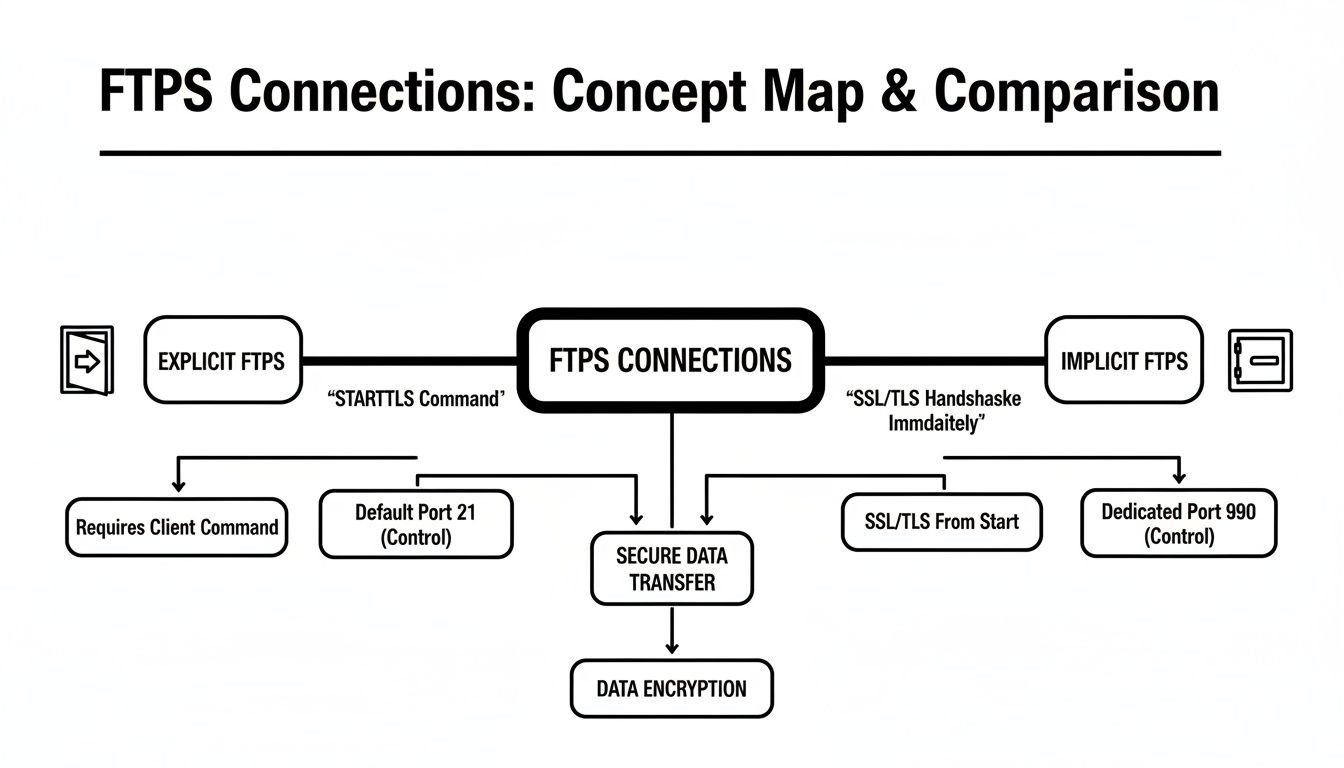
As you can see, Explicit FTPS is more flexible, while Implicit is more restrictive. This is why a combination of Passive mode and Explicit FTPS is the most common and reliable configuration. Of course, this all relies on having a solid firewall in the first place; choosing the Best Firewall for Small Business is a crucial step.
To make Passive FTPS work, you’ll need to open a couple of things on your firewall:
- The main FTPS control port (that’s usually port 21 for Explicit FTPS).
- A specific range of ports for the data channel (for example, ports 50000–51000). You set this range in your FTPS server, then you have to open the exact same range on the firewall.
By forcing Passive mode and defining a clear port range, you're essentially creating a clear, predictable lane for your data to move through the firewall. This simple step prevents those maddening connection timeouts and failed transfers.
Making Sense of SSL/TLS Certificates
The other cornerstone of this setup is the SSL/TLS certificate. Think of it as your server's digital ID card. It does two critical jobs: it proves to the client that your server is legitimate, and it provides the encryption that makes FTP over SSL secure in the first place.
You’ll generally run into two types of certificates:
- Self-Signed Certificates: You can create these for free on your own server. While they provide encryption, they don't offer any real identity verification because no trusted authority has vouched for them. They're fine for internal lab testing, but you should never use them in a live environment. Anyone connecting will get a scary security warning. For example, a developer testing a script on a local server might use a self-signed cert, knowing it's a closed system.
- CA-Signed Certificates: Issued by a trusted Certificate Authority (CA) like Let's Encrypt or DigiCert, these are the real deal. A CA-signed certificate confirms your server's identity, which builds trust and gets rid of those security pop-ups for your clients and partners. This is the only professional choice for a production server. For instance, a bank that needs partners to upload financial data will use a CA-signed cert to assure partners they're connecting to the authentic
ftp.bigbank.com.
A Practical Walkthrough for Setting Up FTPS
All the theory is great, but security really comes to life when you get your hands dirty. Let's walk through the essential steps to get a basic FTP over SSL server and client running. To make this tangible, we'll use the popular and free FileZilla Server as our real-world example.
Before starting, make sure you've already downloaded and installed FileZilla Server on the machine you plan to use. The whole setup process is about building a secure foundation first with certificates, then layering user access on top. This way, security is part of the design from the very beginning, not just an afterthought.
Step 1: Generating Your Security Certificate
First things first, we need to create the SSL/TLS certificate. This is the bedrock of your entire setup. Think of it as your server's digital passport; it proves its identity to connecting clients and makes the encrypted conversation possible.
Inside the FileZilla Server interface, find your way to the SSL/TLS settings (Edit > Settings > SSL/TLS settings). You should see an option to generate a new certificate. It will ask for some details like your country, organisation, and a "common name"—which is usually your server's domain name or IP address. For example, you might enter ftp.mycompany.com as the common name.
For just mucking around or internal testing, a self-signed certificate like this will do the job just fine. But let's be clear: for any server that will be exposed to the internet, you'll need to swap this out for a proper certificate issued by a trusted Certificate Authority (CA).
Step 2: Configuring the Server for FTPS
With your certificate ready, it's time to tell the server how to use it and to insist on secure connections. This is where we turn the concepts of FTP over SSL into concrete rules.
- Enable FTPS: In those same SSL/TLS settings, flip the switch to enable FTP over SSL/TLS support (FTPS).
- Require Explicit FTPS: You'll want to select the option to "Allow explicit FTP over TLS." A crucial best practice here is to also tick the box that disallows plain, unencrypted FTP. Doing this forces every single client to negotiate a secure connection. No exceptions.
- Enforce Modern Protocols: Here’s a pro tip that makes a huge difference: disable old, busted protocols. Set your server to only accept connections using TLS 1.2 or higher. This simple step shuts the door on downgrade attacks that trick servers into using weaker, vulnerable encryption.
By blocking standard FTP and demanding modern TLS versions, you're immediately closing some of the most common security holes. This single configuration change turns your server from a potential risk into a secure channel for your data.
Step 3: Creating Secure Users and Permissions
Now we can start adding user accounts. Every user needs a login and a strong password, but just as importantly, they need clearly defined permissions for the folders they're allowed to touch.
Head over to the "Users" section (Edit > Users) and add a new user. The most important setting on this screen is the one that forces the user to connect securely over FTPS. This stops anyone from connecting without encryption, whether by accident or on purpose.
Once the user is created, you can assign them a home directory and lock down their permissions. For instance, a user marketing_uploads might be given a home directory of D:FTPMarketing and be granted only Write and Append permissions. This allows them to upload new campaign files but prevents them from deleting existing ones or seeing folders for other departments. This is the "principle of least privilege" in action, and it's a cornerstone of solid security.
Step 4: Connecting with an FTPS Client
The moment of truth! Let's get a client like the FileZilla client or WinSCP to connect to your shiny new secure server.
When you're setting up the connection in your client's site manager, you have to be specific about the protocol. Don't just pick "FTP." You need to choose "FTPES – FTP over explicit TLS/SSL." Punch in the server's address (ftp.mycompany.com), port (21), and the username (marketing_uploads) and password you just created.
When you hit connect, the client will first check the server's certificate to verify its identity. Once that handshake is complete, it will establish a fully encrypted session. If you see your files in the D:FTPMarketing folder, you'll know your FTP over SSL setup is working perfectly.
Partnering with a Managed IT Expert for FTPS
Getting an FTP over SSL server up and running is a solid first step. But let's be honest, that's where the real work begins. The day-to-day management and maintenance are what separate a secure, reliable system from a ticking time bomb. For many growing businesses here in the Philippines, this is often where things start to go sideways.
A simple oversight, like a misconfigured setting or an expired certificate, can grind your critical operations to a halt. Suddenly, files aren't transferring, partners can't connect, and business slows down.
This is exactly why bringing in a managed IT provider isn't just a tech decision—it's a smart business move. It lets your team stick to what they do best, while an expert handles the complex, behind-the-scenes work needed to keep your data flowing safely and smoothly.
Beyond the Basic Server Setup
Properly managing an FTPS server is so much more than just the initial installation. It's a constant loop of monitoring, fine-tuning, and beefing up security, all of which demand specialised knowledge that most in-house teams just don't have.
Think about the common headaches a managed service provider can take off your plate:
- Automated Certificate Renewals: One of the most common reasons an FTPS server goes down? An expired SSL certificate. A managed provider automates this renewal process so your connections never drop, saving you from embarrassing—and expensive—downtime.
- Application Integration: They can get your FTPS server talking to your other crucial systems. Imagine automated data flows between your server and your accounting or inventory software. For example, a script could automatically pull a daily sales report from your server at midnight and import it directly into your accounting platform, with no human intervention needed.
- High Availability: If your file transfers are absolutely mission-critical, they can set up redundant systems. This means even if your main server has a problem, a backup is ready to take over instantly, keeping you online.
A great managed services partner does more than just maintain a server; they weave it into the fabric of your business. They turn it from a simple tool into a resilient, fully integrated part of your infrastructure, stopping security gaps and performance issues before they can ever affect you.
For businesses that want to hand these complexities over to the pros, engaging with professional IT Managed Security Services provides that crucial expert oversight.
At the end of the day, having an expert manage your FTPS means your data transfer system is secure, ready to grow with you, and professionally supported. To see how this could work for your own organisation, take a look at REDCHIP's managed services consulting.
Answering Your Questions About FTP Over SSL
Even with the best plan in place, moving to a secure protocol like FTP over SSL can bring up a few questions. Let's tackle some of the most common ones we hear from businesses, clearing up any lingering uncertainties you might have.
Is FTPS Secure Enough for Compliance?
One of the first things people ask is whether FTPS is strong enough to meet regulations like the Philippine Data Privacy Act (DPA). The short answer is yes—as long as it’s set up properly.
The DPA requires strong technical safeguards for personal data, and FTPS delivers exactly that by wrapping your data in powerful TLS encryption while it's in transit. When you enforce up-to-date protocols like TLS 1.2+ and use properly validated certificates, FTPS isn't just a file transfer method; it becomes a key part of your compliance strategy, shielding sensitive information from prying eyes.
Can I Keep Using My Current FTP Client?
Chances are, yes. Most modern FTP clients handle FTPS just fine, but you can't just connect the old way. You have to actively tell it to be secure.
Dive into your connection settings and look for options like "FTPS", "FTP with explicit TLS/SSL", or "FTPES". You'll also need to make sure you're pointing to the right server address and port, which is typically port 21 for explicit FTPS. If your software is ancient and doesn't offer these choices, it's time for an upgrade. Sticking with an old client is a major security hole waiting to be exploited.
The key takeaway is that while your software is likely compatible, you must proactively change the settings to establish a secure FTP over SSL session. Failing to do so will result in an unencrypted connection.
Do We Still Need FTPS if We Use Cloud Storage?
It's a great question. Services like Google Drive are fantastic for collaboration and manually sharing files with your team. But they serve a different purpose than FTPS, which is the undisputed champion of automated, machine-to-machine data transfers.
Think about it this way: FTPS is what you use to automatically push daily sales reports to a partner's system or to pull in large, scheduled data feeds from a supplier. For example, a retail business might use an FTPS script that runs every night at 2 AM to upload a daily_inventory.zip file to its main logistics partner. This happens automatically, without anyone needing to drag and drop files in a browser. It's built for those reliable, high-volume, automated workflows where you need servers to talk directly to each other without any manual intervention.
Ready to implement a secure, professionally managed file transfer solution without the hassle? The experts at REDCHIP IT SOLUTIONS INC. can design, deploy, and support a robust FTPS environment tailored to your business needs, ensuring your data is always protected. Learn more at https://redchipcomputers.com.



